
Skips the clutter
System folders, hidden files and agent data never turn into bookmarks.
We use analytics cookies to count visits and installs. Advertising cookies stay off unless you allow them. Privacy policy
Bizmark turns the folders you already keep in Google Drive into bookmarks in Chrome. Update Drive and everyone’s bookmarks follow, with nothing to maintain.
Works with Google Workspace. Free for 14 days.
Someone bookmarks the Sales Playbook. Someone else emails the CRM link. New hires ask where everything lives, and the answer is a message to whoever has been here longest.
Your Drive already holds the answer. Bizmark puts it where people actually look: the browser.
Bizmark finds your company from your work account. There are no DNS records to add and no admin console to open.
Pick the folder your team already uses. Bizmark reads folder names and links, and skips system folders on its own.
A folder for your company shows up in the bookmarks bar and in the side panel, organized the way Drive is.
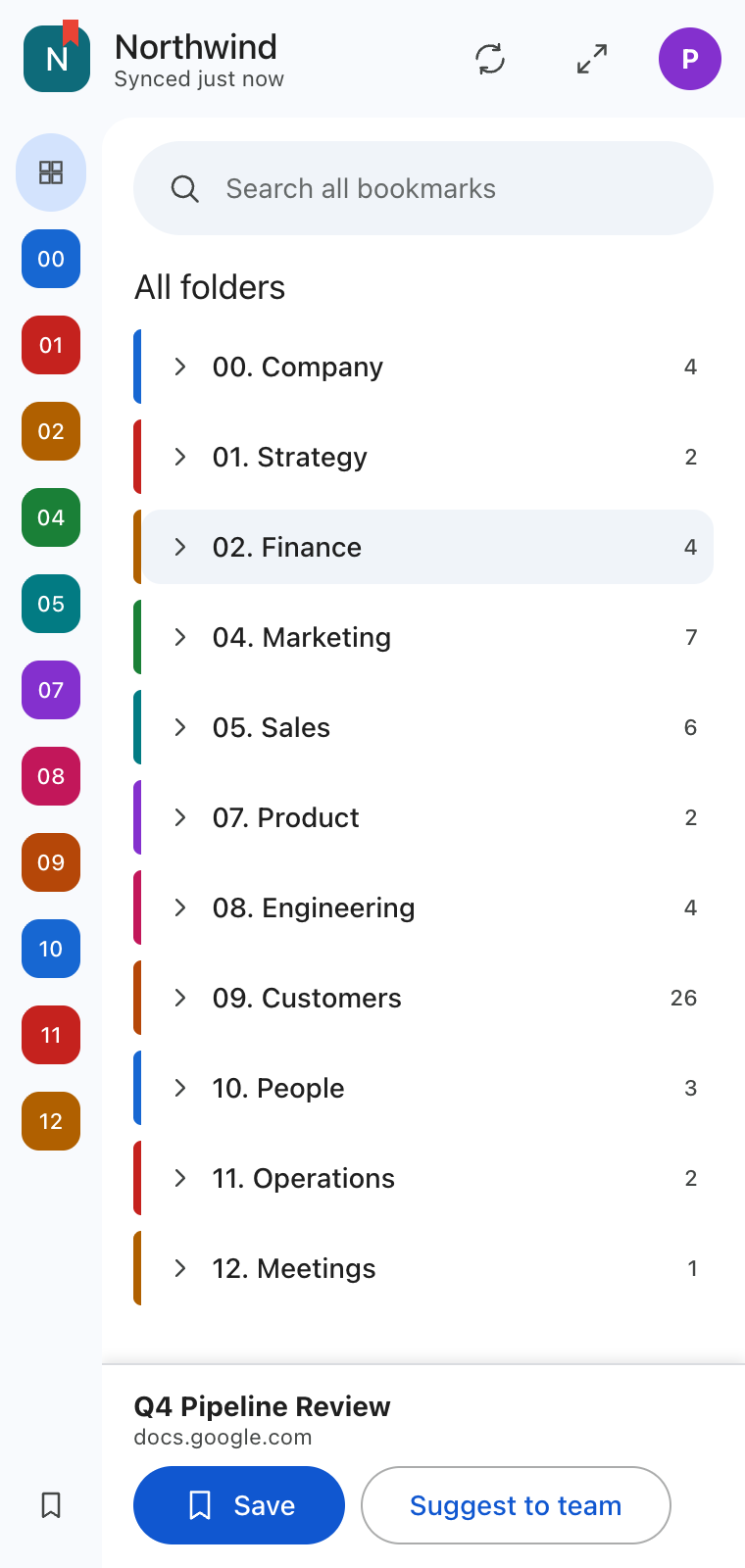
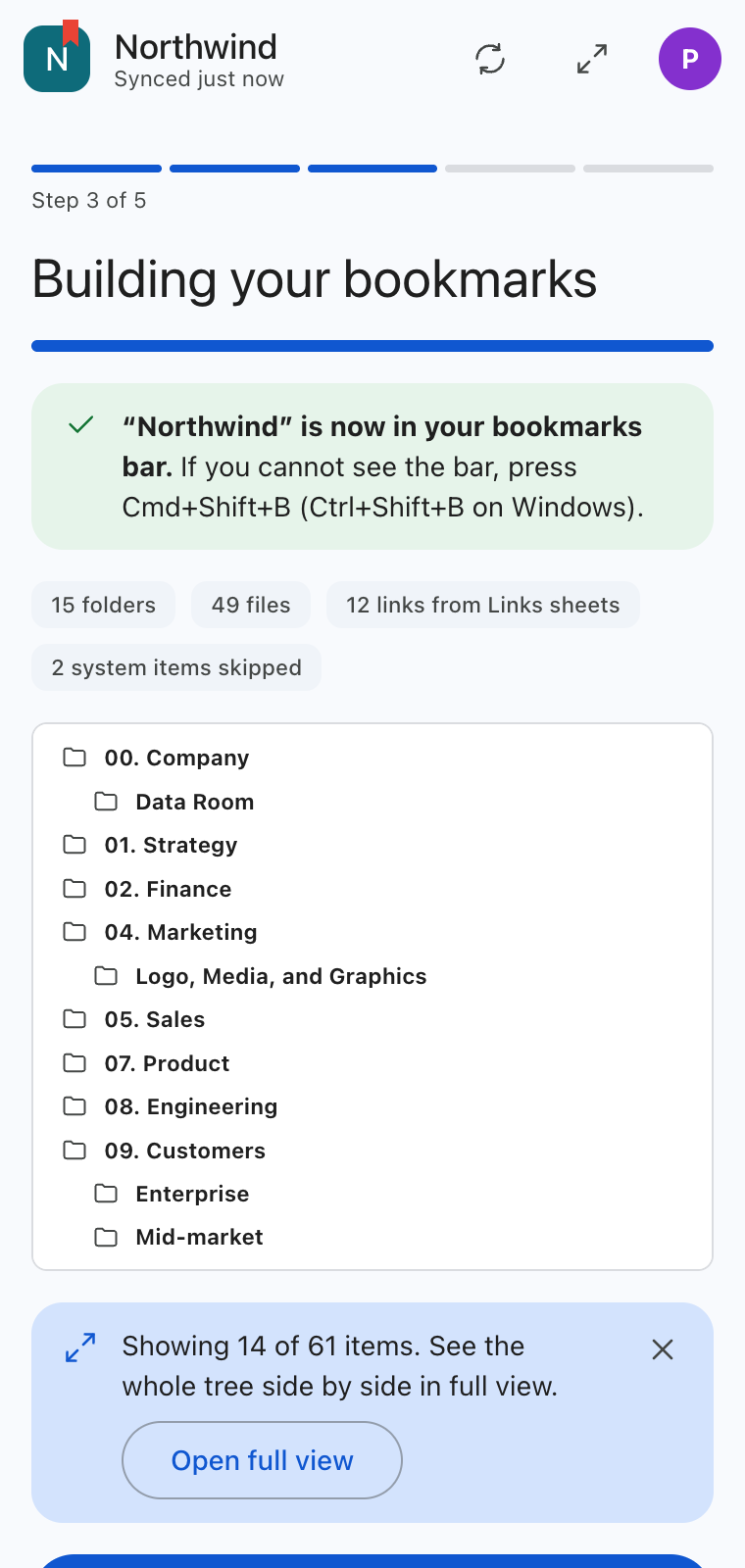
Keep Bizmark beside any page. Each department gets its own color and folder number, so you spot Sales or Finance at a glance. When a folder is big, open the full view and read it in columns, with details for every item.

Your company folder lives in the bookmarks bar and the bookmark manager, right next to the bookmarks you add yourself. Chrome’s own search and shortcuts keep working. It’s the same result as importing a bookmarks file, without the importing.
Access comes straight from Drive sharing. Priya, who owns the Drive, sees eleven folders. Marcus, in Sales, sees six. Change who can open a folder in Drive and the bookmarks follow at the next sync.
Bizmark never grants access. It only shows what Drive already allows.
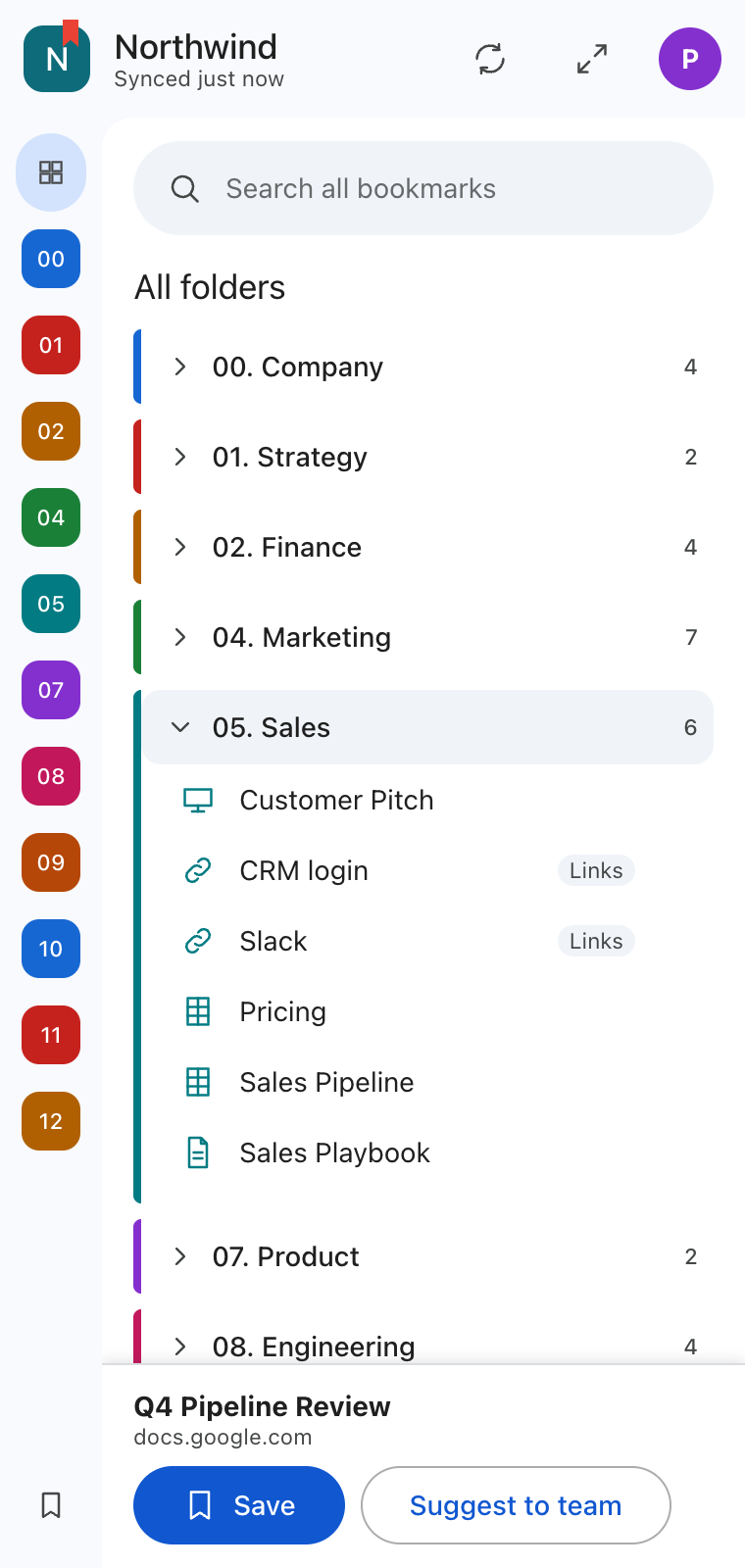
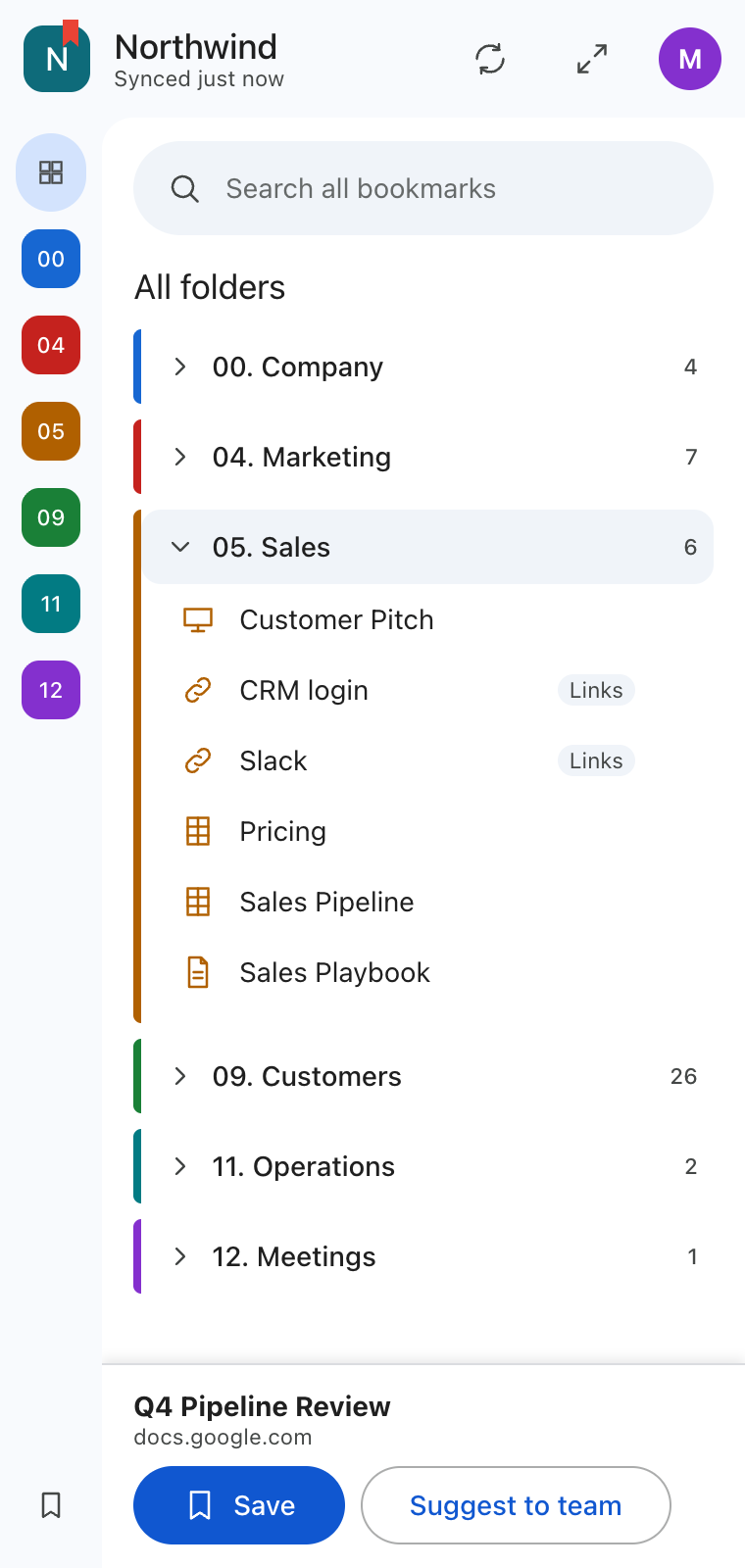
Your CRM, Slack and status page don’t live in a folder. Put a sheet named Links in any folder and each row becomes a bookmark there. Anyone who can edit the sheet can add one.
System folders, hidden files and agent data never turn into bookmarks.
Anyone can suggest the page they’re on for a folder. The owner reviews it in Drive.
Bizmark checks Drive in the background, so new docs and renamed folders show up without a click.
Rename a folder, add a doc or drop in a Links sheet, and everyone’s bookmarks update. Owners get a small admin area for the source folder, branding and plan.
Want Bizmark on every computer? IT can force-install it from the Google Admin Console. It’s optional, and nothing else depends on it.
Setup happens in the extension, with your own Google account.
Numbered folders keep their order. Hide the numbers with one switch.
Your company name and color on the bookmark folder and the panel.
Company bookmarks are protected from stray edits, or let them behave like any imported bookmarks.
Bizmark needs to know what your folders are called and where they point. It does not need your documents.
A seat is anyone with access to your Drive folder.
No. Anyone who can sign in with a work Google account and open the Drive folder can use Bizmark. An admin can also install it for everyone, but it’s optional.
No. Your bookmarks stay where they are. Bizmark adds one folder for your company and a My bookmarks folder for pages you save through it.
By default Bizmark puts them back, and keeps a copy of anything you moved in My bookmarks. Owners can switch protection off, so the bookmarks behave like any others until Drive next changes.
Whoever Drive shares them with. Bizmark never grants access. If someone loses access to a folder, it disappears from their bookmarks at the next sync.
No. It reads folder names, file names and links. It does not open files.
Chrome today. The side panel needs a recent version of Chrome.
Add Bizmark, choose your Drive folder, and your bookmarks are ready.
Add to Chrome